Registering and Logging In to an Account
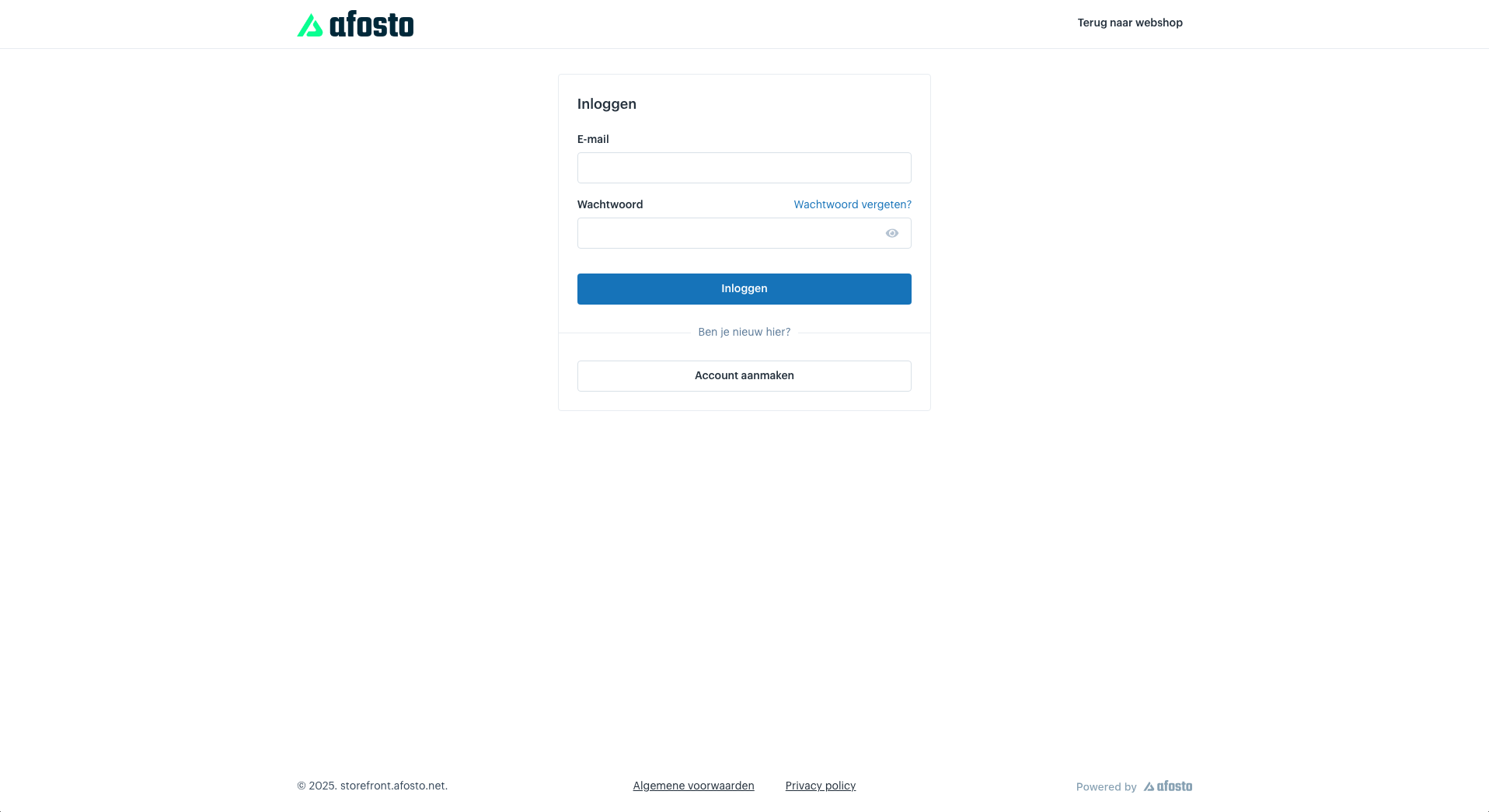
Logging in to an account in Afosto is simple and quick. Go to the login page of your webshop’s account area. The customer must enter their registered email address and password. Once logged in, the customer immediately gains access to their account, where they can manage all their orders and settings.

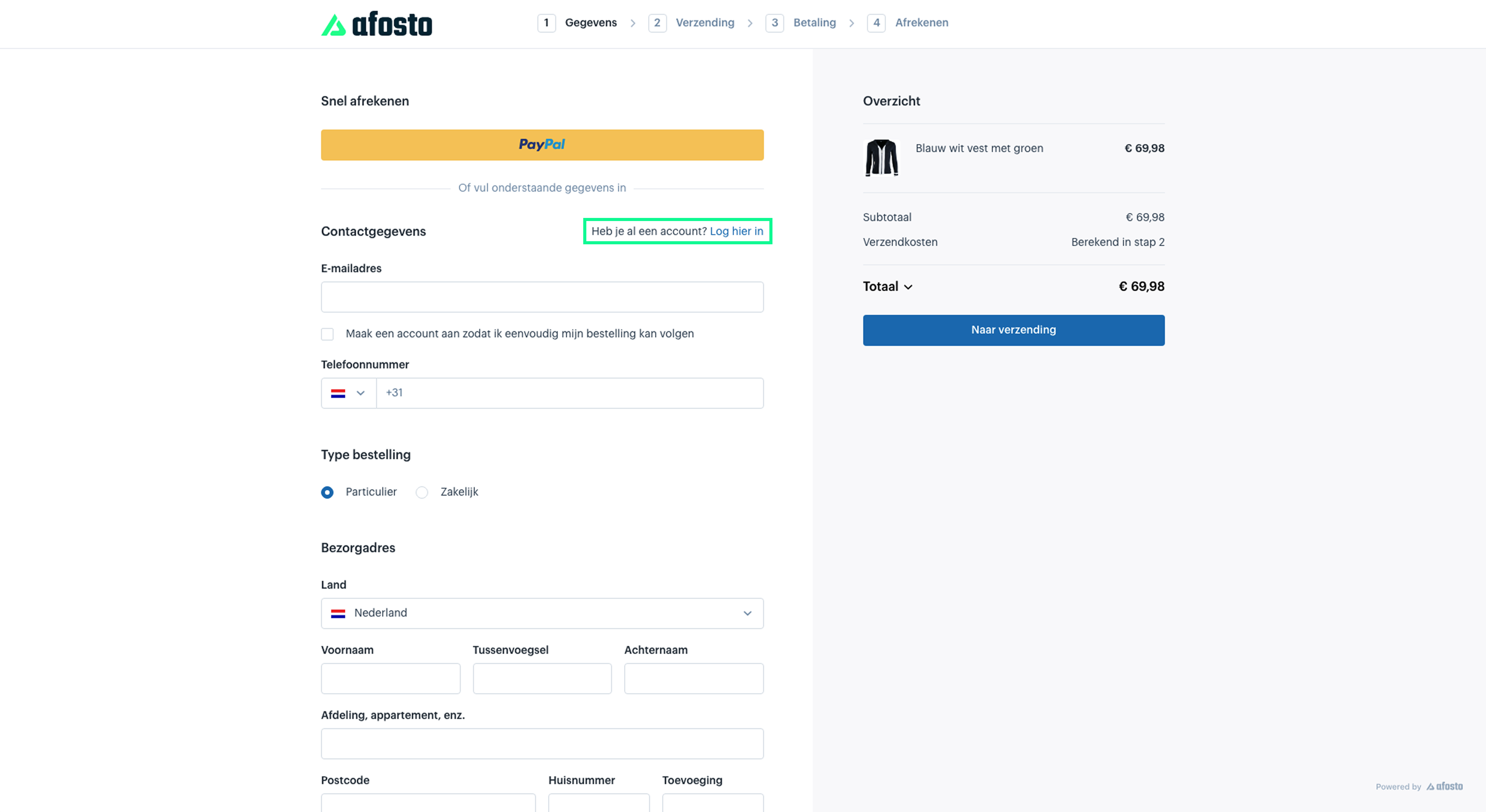
Even if the customer is already on the checkout page, they can log in directly without first going back to the login page. During checkout, in the first step (Details), the customer sees an option to log in with an existing account. Once logged in, all saved information is automatically filled in. This makes the checkout process faster and easier, without needing to re-enter any information.

To allow customers to log in to the account area of your webshop, you first need to set up the account area on your storefront sales channel. Read more about how to
Creating an Account
If the customer doesn’t have an account yet, registering/creating one is very simple and can be done in several ways:
- The customer creates an account during checkout.
- The customer creates an account on your webshop’s login page.
- You manually add a contact in the Afosto platform.
During Checkout
During the checkout process, in the first step (Details), the customer has the option to create an account. They need to check the option ‘Create an account so I can easily track my order’ and then simply enter a password to complete the registration.

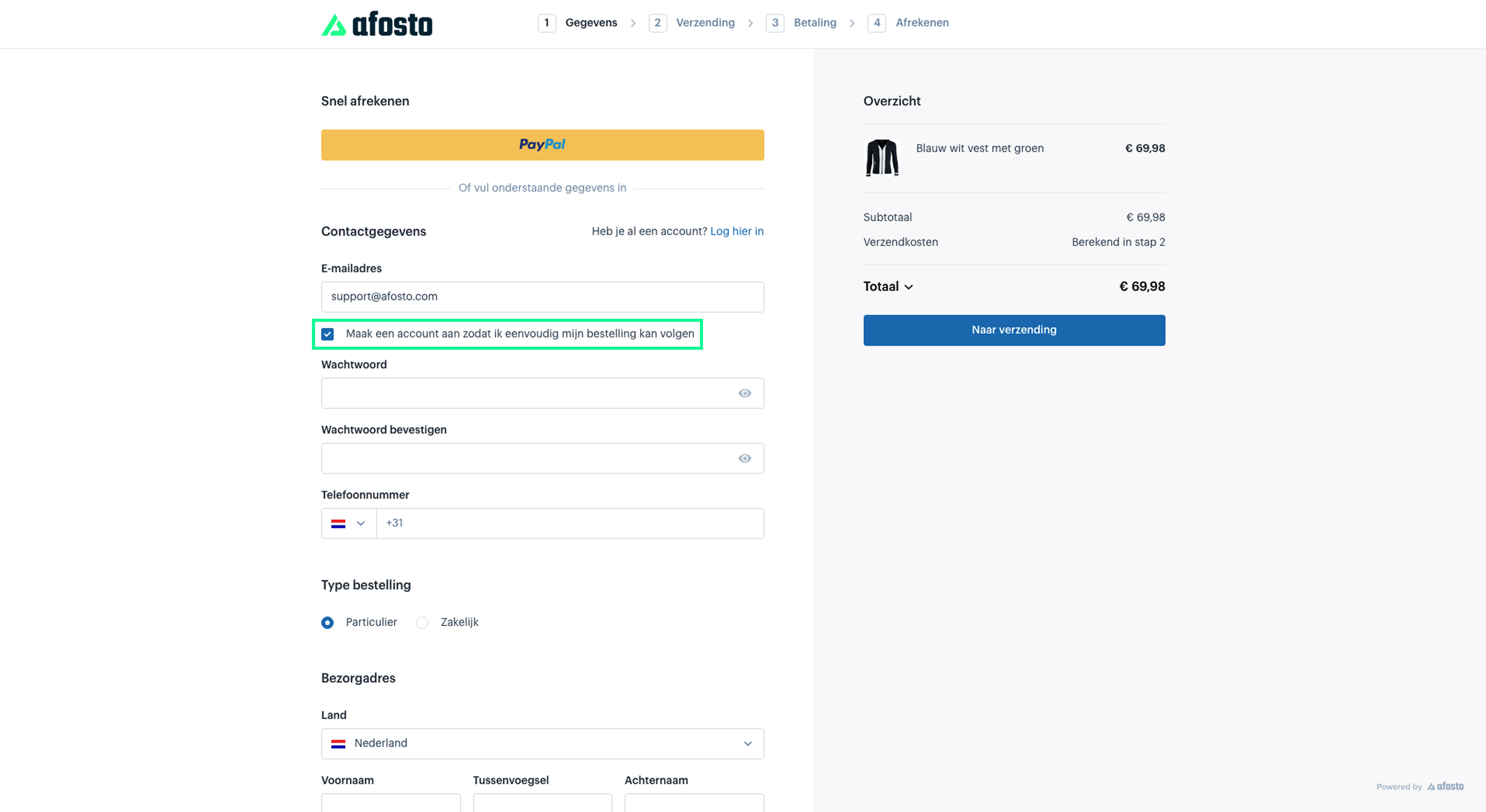
After completing the checkout and placing the order, the customer receives an email to verify their email address. Once the email is confirmed, the customer can log in to their account in the account area of your webshop.
On the Webshop Login Page
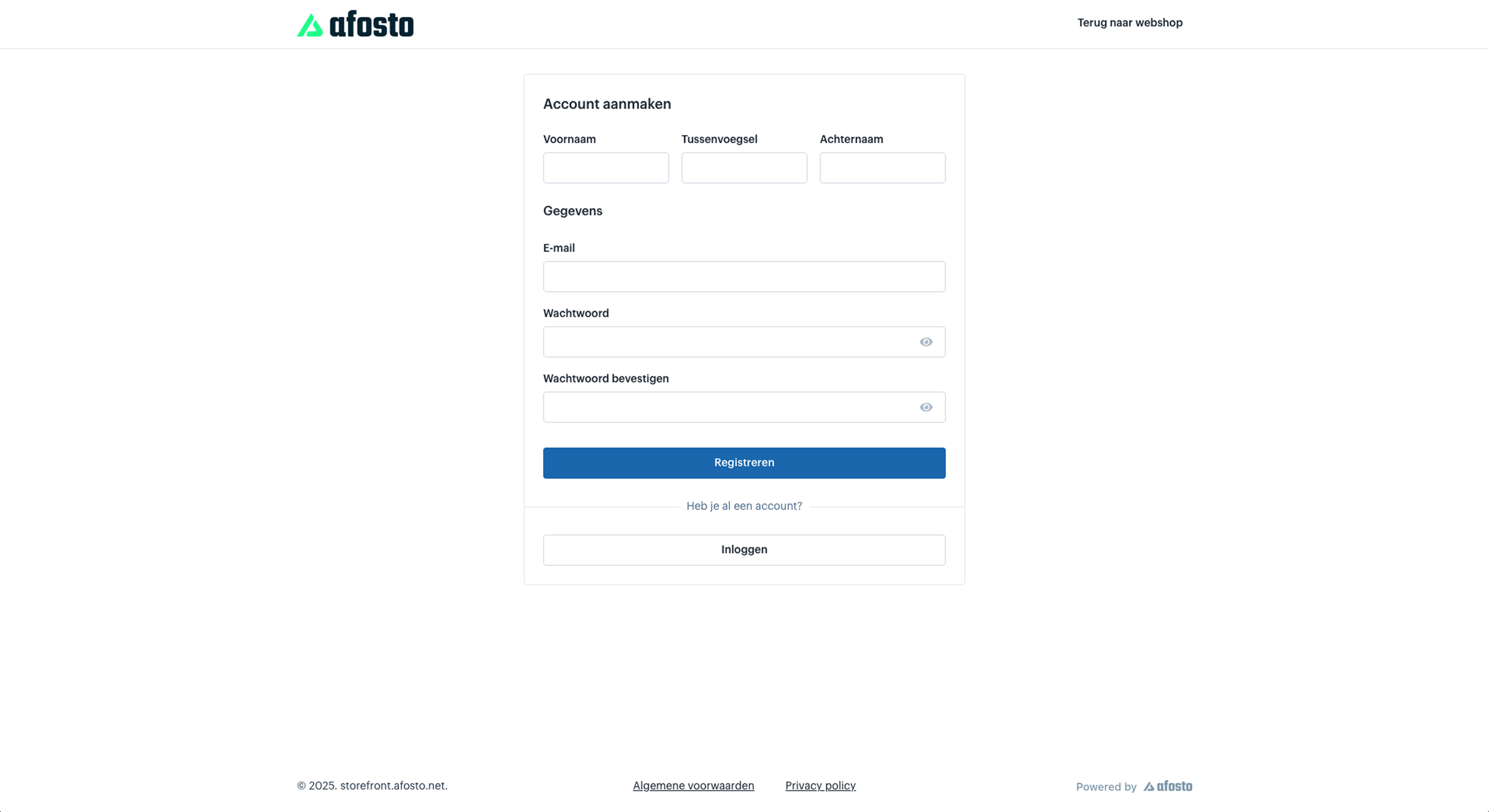
A customer can also create an account via your webshop’s login page. On this page, the customer selects the option ‘Create Account’, then enters their full name and email address, and sets a password to use for future logins.

Adding a Contact in the Afosto Platform
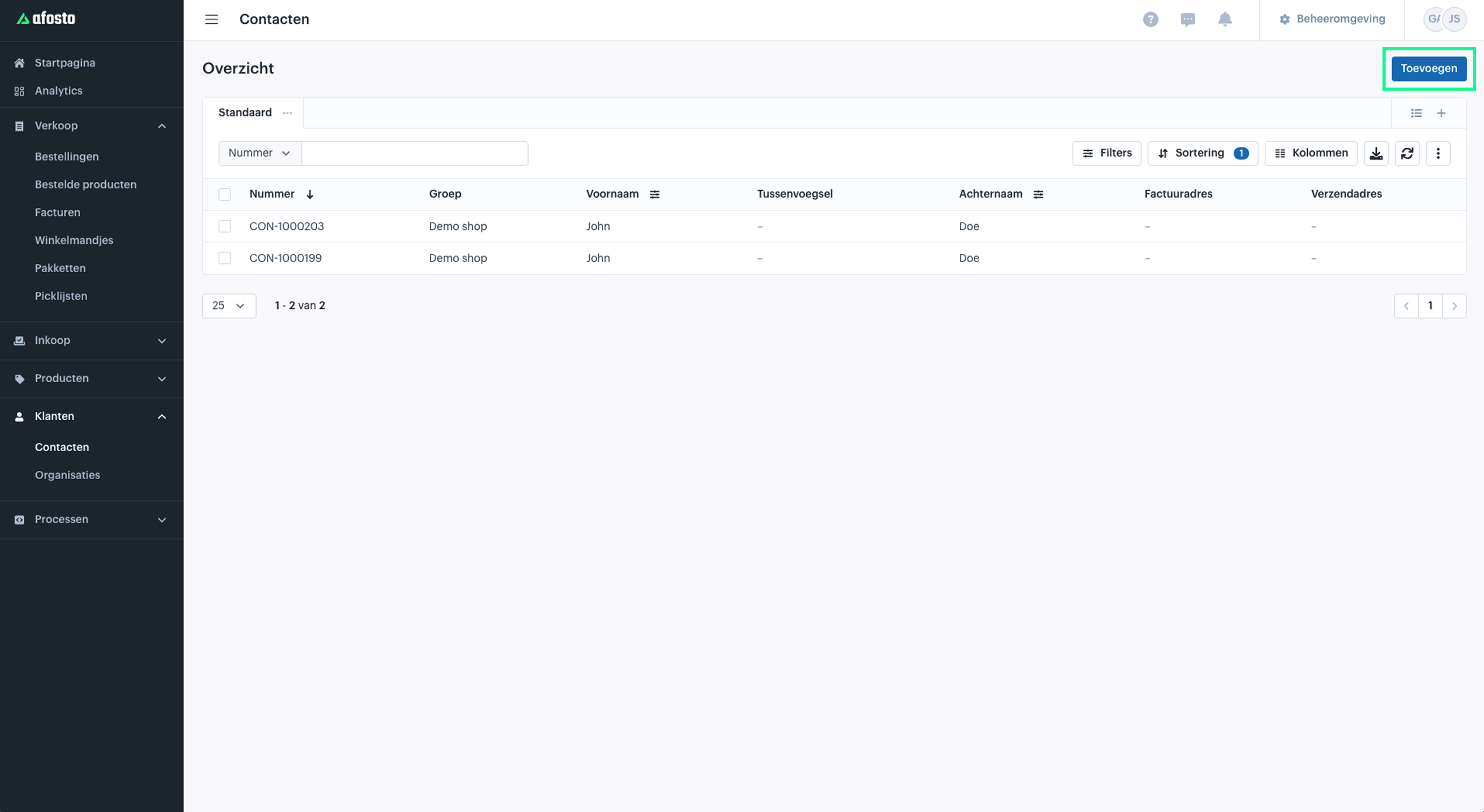
The last option is to manually add a contact in the Afosto platform. Go to ‘Customers’ in the Afosto platform and select ‘Contacts’ from the dropdown menu. On this page, you will find an overview of all contacts from all your sales channels, including both guest and non-guest contacts. Click ‘Add’ in the top right corner to manually add a new contact. Read more about

Non-Guest Contact
For every customer who goes through your checkout, a new contact is created in the Afosto platform unless the customer logs in to an existing account. Depending on how the customer completes the checkout, either a guest contact or a non-guest contact is created.
- A guest contact has chosen to checkout as a guest and cannot log in to an account afterward.
- A non-guest contact is a customer who has registered on your webshop.
Account Area
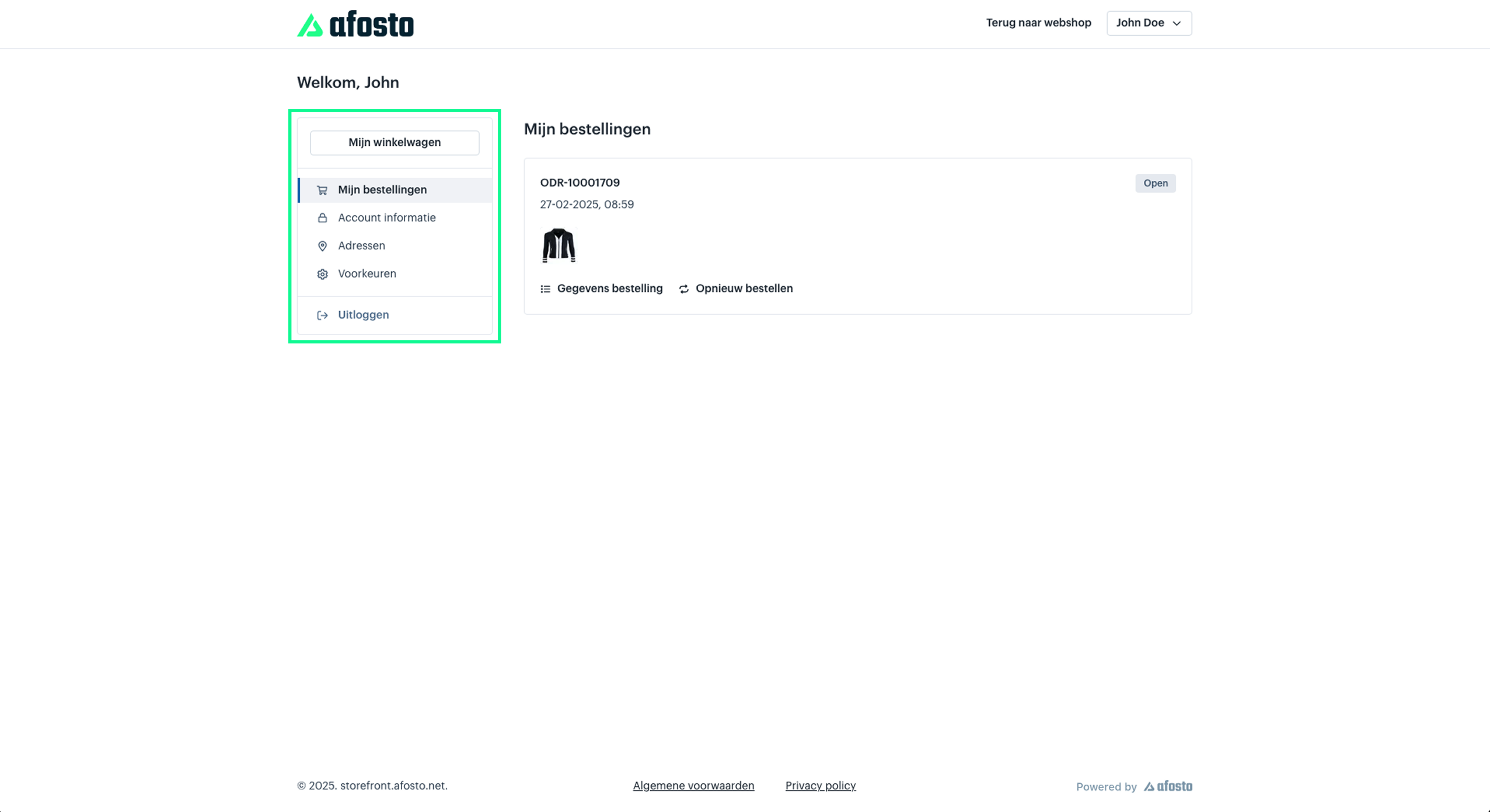
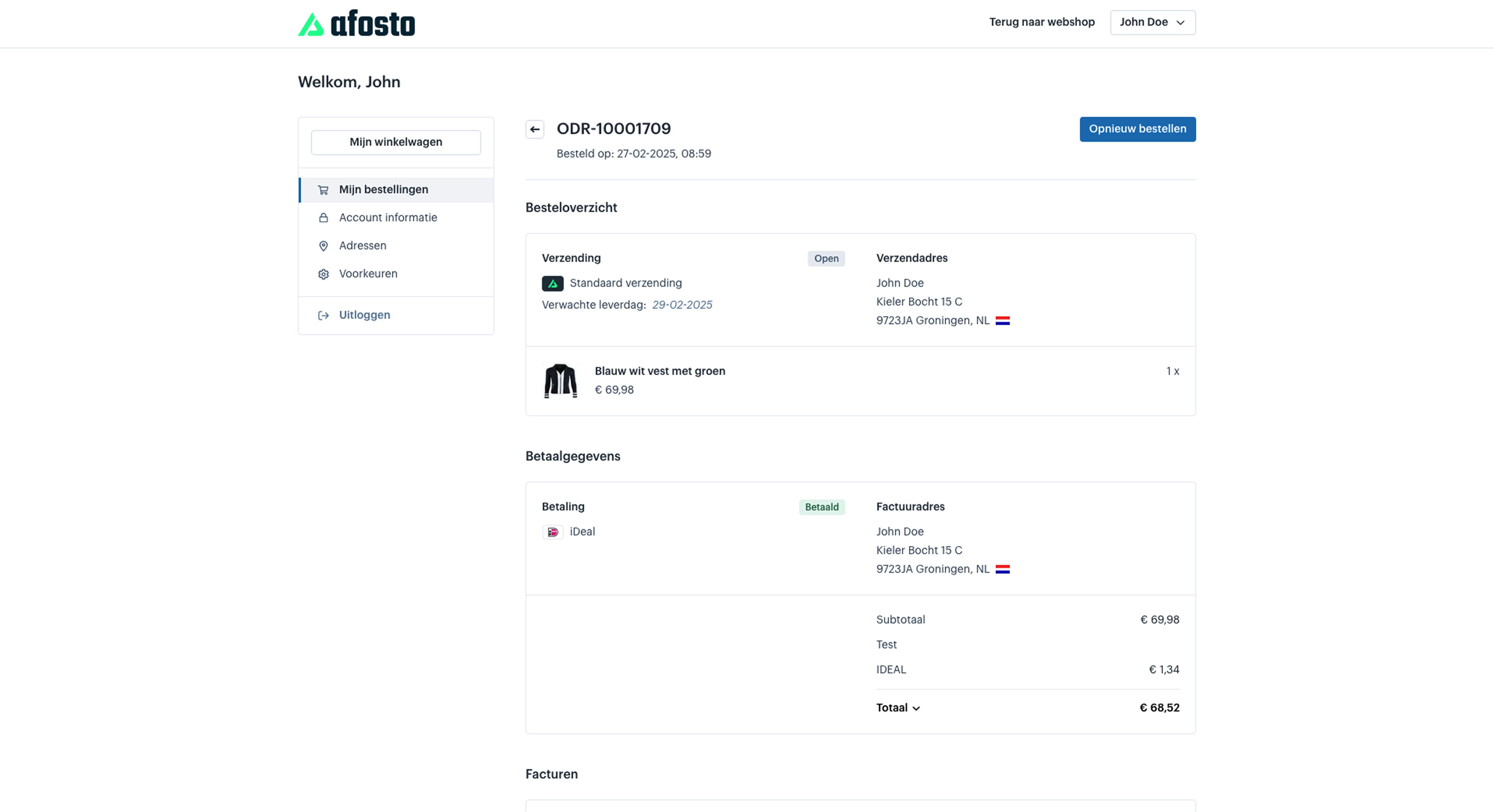
In the account area, the customer can update their account information, manage addresses, and set preferences. They can also view all information regarding their orders, including:
- When the order was placed.
- What the customer ordered.
- Which shipping method is used for the order.
- To which shipping address the order is sent.
- The expected delivery date.
- How much was paid for the order.
- Which payment method was used.
Additionally, the customer can print and/or download the invoice for their order and has the option to reorder the same items.